

Have you ever wanted to say something on Snapchat but didn’t feel like typing a long message? Maybe you wanted to wish a friend happy birthday, explain something quickly, or simply let them hear your voice. That’s exactly why voice messages are so useful.
If you’re wondering How to Send a Voice Message on Snapchat, don’t worry. The process is simple, even if you’re using the app for the first time. Once you know where the microphone button is, you can record and send your message in just a few seconds.
This guide will walk you through each step in an easy way. You’ll also learn how to delete a voice message and what to do if the feature isn’t working on your phone.
Table of Contents
What Is a Voice Message on Snapchat?
A voice message is a short audio recording that you send through a Snapchat chat. Instead of typing everything, you simply record your voice and send it instantly.
Many people prefer voice messages because they sound more natural. Your tone, excitement, and emotions are easier to understand compared to plain text. It’s a great option when you’re in a hurry or want your message to feel more personal.
Unlike a voice call, the other person doesn’t have to answer right away. They can listen whenever it’s convenient for them.
Read Also – How to Unblock Someone on Snapchat – A Simple Step-by-Step Guide
Can You Send Voice Messages on Snapchat?
Yes. Snapchat lets users send voice messages through private chats on both Android and iPhone devices.
Before you start, make sure you’re using the latest version of the app and that microphone permission is enabled. Without microphone access, Snapchat won’t be able to record your voice.
If everything is set up correctly, you’re ready to start sending audio messages to your friends.
How to Send a Voice Message on Snapchat (Step-by-Step)
Sending a voice message only takes a moment.
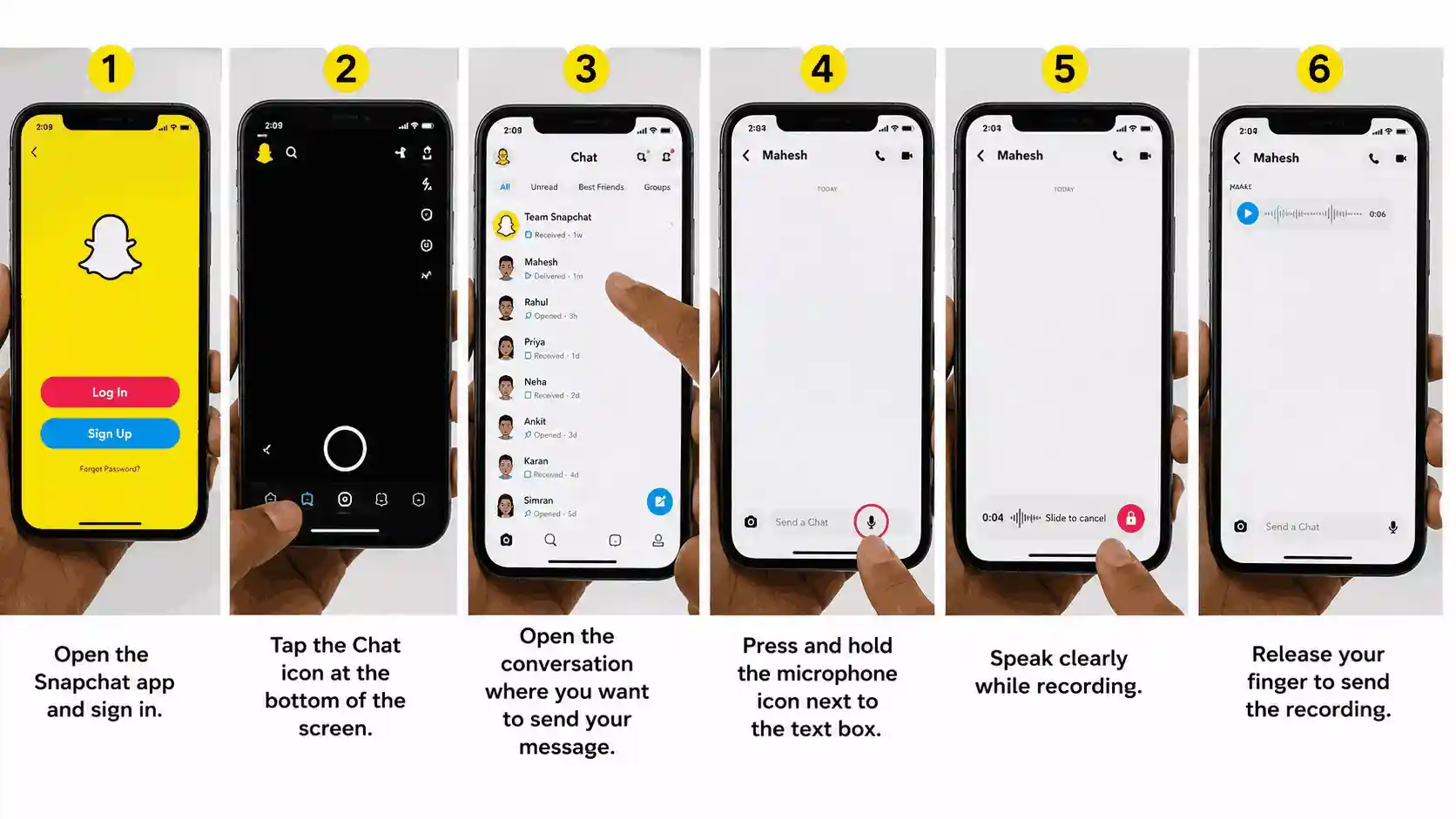
- Open the Snapchat app and sign in.
- Tap the Chat icon at the bottom of the screen.
- Open the conversation where you want to send your message.
- Press and hold the microphone icon next to the text box.
- Speak clearly while recording.
- Release your finger to send the recording.
If Snapchat asks for microphone permission, tap Allow. For better sound quality, try recording in a quiet place and keep your message short and clear.
Read Also – How to Hide Chat in Snapchat Without Deleting Your Conversations
How to Delete a Voice Message on Snapchat
Everyone makes mistakes sometimes. If you accidentally send the wrong recording, Snapchat gives you the option to remove it.
Open the conversation, press and hold the voice message, then tap Delete. The message will be removed from the chat, although the other person may still see that something was deleted.
It’s always a good idea to double-check your recording before sending it, especially if it contains important information.
Conclusion
Learning How to Send a Voice Message on Snapchat is easier than most people expect. After trying it once or twice, the feature becomes second nature.
Voice messages save time, make conversations feel more personal, and are perfect when typing isn’t convenient. If you ever run into problems, checking your microphone permission, updating the app, or restarting your phone usually solves them.
Now that you know how it works, you can enjoy faster and more natural conversations with your friends on Snapchat.
Frequently Asked Questions (FAQs)
Can I send a voice message on Snapchat without making a call?
Yes. Voice messages are sent through chat, so the other person can listen whenever they want without answering a call.
Why can’t I record a voice message?
The most common reasons are disabled microphone permission, an outdated Snapchat app, or a weak internet connection.
Can I delete a voice message after sending it?
Yes. Press and hold the message in the chat and select Delete. Snapchat will remove it from the conversation.
Are voice messages free on Snapchat?
Yes. Voice messages are completely free to send. You only need an internet connection through Wi-Fi or mobile data.
Do voice messages disappear automatically?
Voice messages follow Snapchat’s chat settings. Depending on the conversation, they may disappear after being viewed or stay in the chat if someone saves them.