
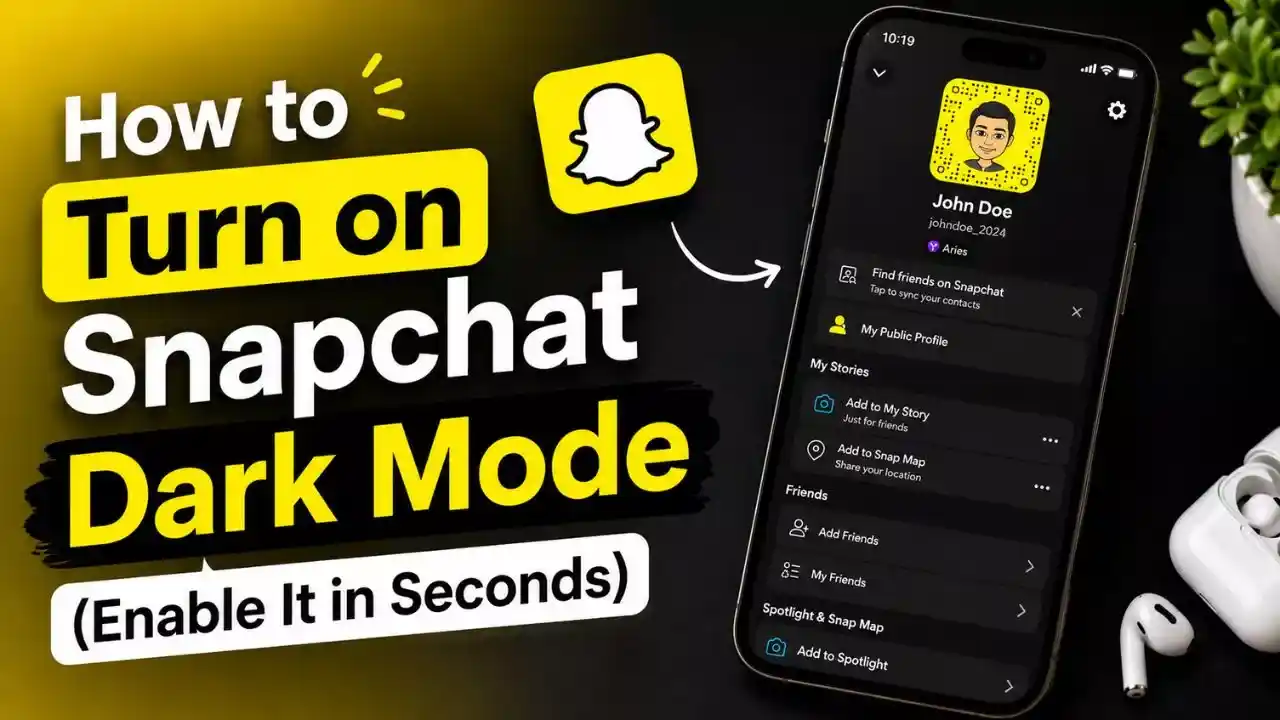
Snapchat is one of the most popular social media apps, known for its fun filters, Stories, chats, and Spotlight videos. Whether you’re messaging friends, sharing daily moments, or exploring new content, chances are you spend a lot of time using the app.
That’s why many users search for How to Turn on Dark Mode in Snapchat. A bright screen can sometimes feel uncomfortable, especially when using Snapchat at night or in low-light environments. Dark Mode helps by replacing the bright interface with darker colors that are easier on the eyes.
Besides improving comfort, Dark Mode also gives Snapchat a cleaner and more modern appearance. Many users prefer it because it makes the app feel less distracting during long browsing sessions.
The good news is that enabling Dark Mode only takes a few moments. In this guide, you’ll learn exactly how to turn on Dark Mode in Snapchat, why people use it, and what to do if the option isn’t available on your device.
Table of Contents
What Is Dark Mode in Snapchat?
Dark Mode is a display setting that changes Snapchat’s appearance from a light theme to a dark theme. Instead of bright white backgrounds, the app uses darker colors throughout menus, chats, and settings.
Many users prefer Dark Mode because it creates a more comfortable viewing experience, especially in low-light conditions. It can also make text easier to read while giving the app a sleek and modern look.
Although Dark Mode changes the appearance of Snapchat, it does not affect how the app works. All features remain the same, but the overall interface becomes darker and more visually comfortable.
1. Why Do People Use Dark Mode?
There are several reasons why Snapchat users choose Dark Mode.
2. Better for Night-Time Use
Using a bright screen in a dark room can feel uncomfortable. Dark Mode helps reduce glare and creates a more pleasant viewing experience.
3. More Comfortable for the Eyes
Many users find darker backgrounds easier to look at during extended periods of use.
4. Modern and Stylish Appearance
Dark themes have become popular across many apps. Snapchat looks cleaner and more polished when Dark Mode is enabled.
5. Potential Battery Savings
On devices with OLED displays, darker colors may help reduce battery consumption compared to bright white backgrounds.
How to Turn On Dark Mode in Snapchat
Follow these simple steps to enable Dark Mode in Snapchat.
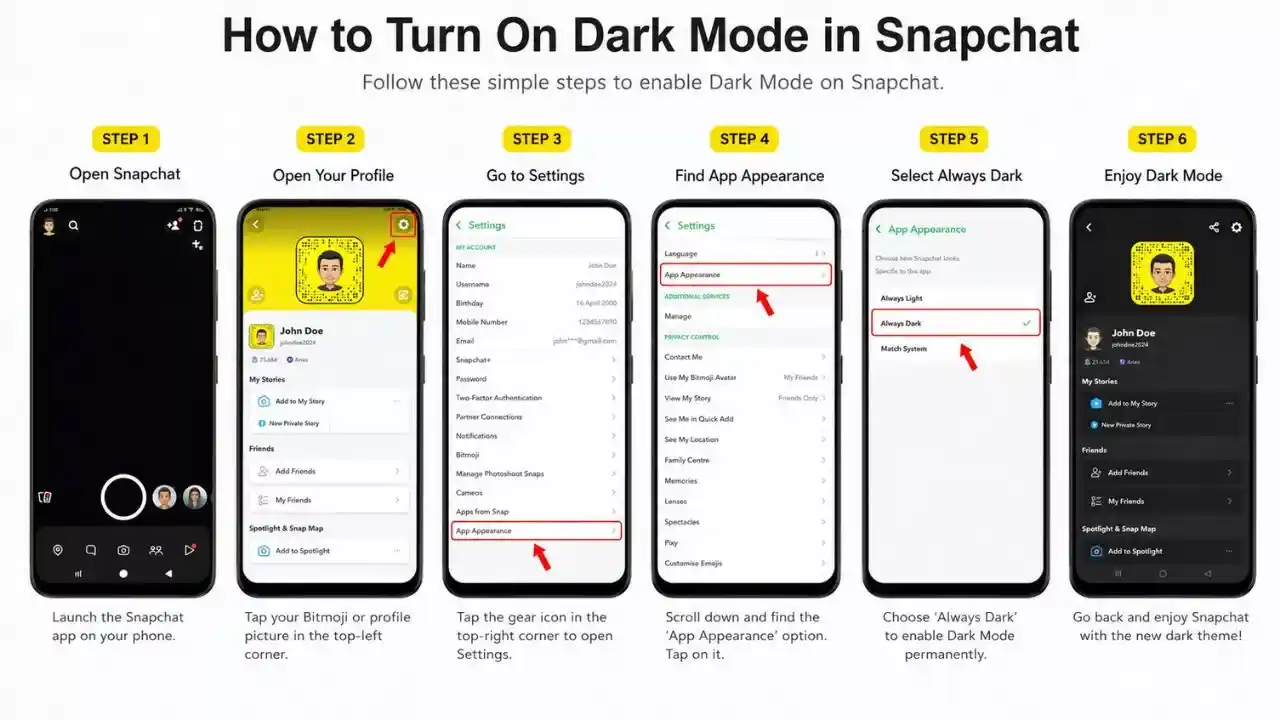
Step 1:- Open Snapchat
Launch the Snapchat app on your Android or iPhone device. Make sure you’re signed in to your account.
Step 2:- Open Your Profile
Tap your Bitmoji or profile picture in the top-left corner of the screen. This will open your Snapchat profile page.
Step 3:- Open Settings
Tap the gear icon in the top-right corner. You’ll now see the Snapchat Settings menu.
Step 4:- Find App Appearance
Scroll down until you find the App Appearance option. Tap on it to continue.
Step 5:- Select Always Dark
You’ll see different appearance options available. Choose Always Dark to enable Dark Mode permanently. The change should take effect immediately.
Step 6:- Enjoy Dark Mode
Return to Snapchat’s main screen. You should now see a dark-themed interface throughout the app.
Read Also
- How to Check Birthday on Snapchat (Easy Step-by-Step Guide)
- How to Make Boomerang in Snapchat (Easy Step-by-Step Guide)
What If You Can’t Find Dark Mode?
Sometimes users cannot locate the App Appearance option.
Here are a few possible solutions.
Update Snapchat
An outdated version of Snapchat may not include the latest features.
Visit the App Store or Google Play Store and install any available updates.
Check Device Compatibility
Some Snapchat features may vary depending on your device model and operating system version.
Restart the App
Close Snapchat completely and reopen it.
This can often resolve temporary display or settings issues.
Restart Your Phone
A quick restart can help newly updated settings appear correctly.
Common Mistakes You Should Avoid
Many users experience issues because of simple mistakes.
Using an Outdated Version of Snapchat
Always keep Snapchat updated to access the latest features and improvements.
Looking in the Wrong Settings Menu
The Dark Mode option is located under App Appearance, not in your phone’s general settings.
Forgetting to Restart the App
Sometimes changes may not appear until Snapchat is closed and reopened.
Assuming Every Device Works the Same Way
The Snapchat interface can vary slightly between Android and iPhone devices.
Conclusion
Learning how to turn on dark mode in Snapchat is quick and easy. Dark Mode can make the app more comfortable to use, especially during nighttime browsing, chatting, and content viewing.
By following the steps above, you can switch to a darker interface in just a few minutes and enjoy a cleaner, more modern Snapchat experience. If the option isn’t available right away, updating the app and checking your settings will usually solve the issue.
For many Snapchat users, Dark Mode is a simple feature that makes a noticeable difference in everyday app usage.
FAQs
Q1. Is Snapchat Dark Mode Free?
Yes. Dark Mode is completely free for all Snapchat users.
Q2. Can I Turn Off Dark Mode Later?
Yes. You can return to the App Appearance settings and switch back to another theme whenever you want.
Q3.Does Dark Mode Save Battery?
On devices with OLED displays, Dark Mode may help reduce battery usage.
Q4.Why Can’t I See App Appearance in Snapchat?
Your Snapchat app may need an update, or the feature may not yet be available on your device.
Q5.Does Dark Mode Affect Snapchat Features?
No. Dark Mode only changes the appearance of the app and does not affect its functionality.