
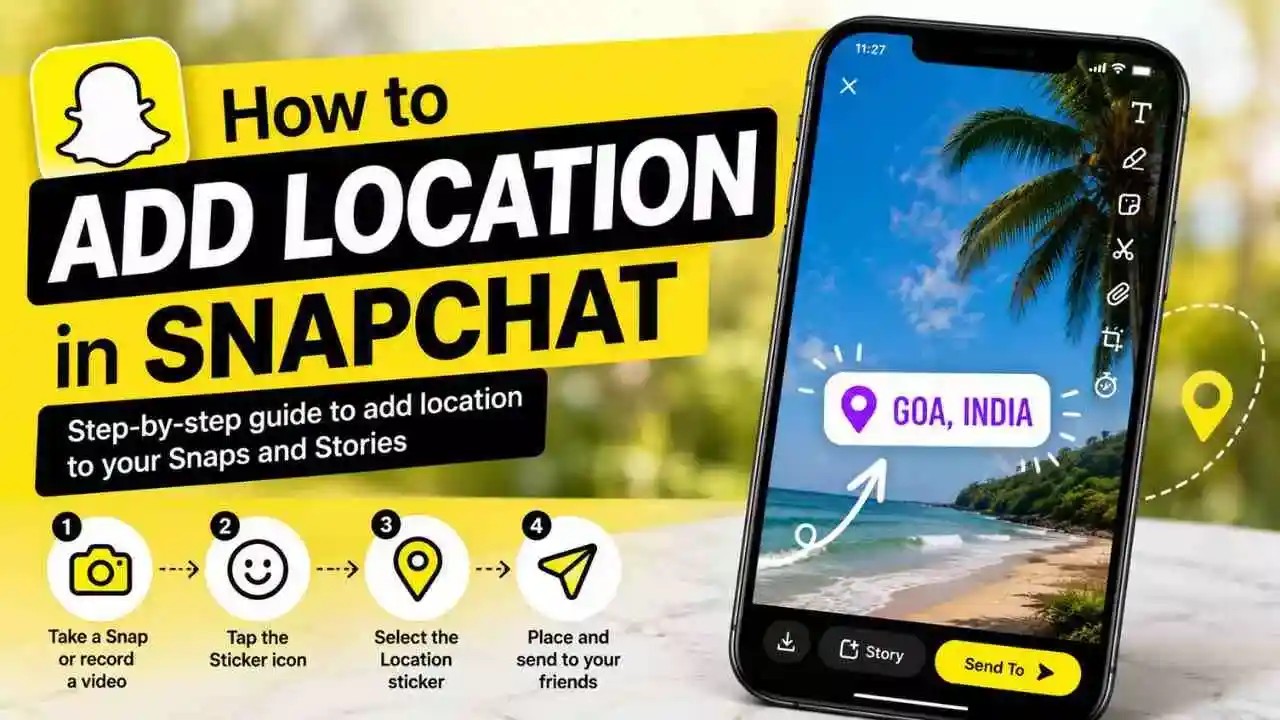
How to Add Location in Snapchat – Snapchat is one of the most popular social media apps for sharing photos, videos, and daily moments. People use it to stay connected with friends, share travel experiences, and capture special memories. One feature that makes Snapchat more fun is the ability to add a location to your Snaps.
Imagine you are visiting a new city, enjoying a concert, or spending time at your favorite café. Adding a location helps others understand where the moment happened. It gives your Snap a more personal touch and makes your Story look more engaging.
Many users know about Snapchat filters and stickers, but they are often confused about how to add a location. The good news is that the process is very simple. In this guide, you will learn what the Snapchat location feature is, how to use it correctly, and the common mistakes you should avoid.
Table of Contents
What Is Location Feature In Snapchat?
The location feature in Snapchat allows users to add their current location to photos and videos before sharing them. This location appears as a sticker that can be placed anywhere on the Snap.
The feature works using your phone’s location services or GPS. Once Snapchat has permission to access your location, it can automatically detect where you are and suggest location stickers.
This feature is useful in many situations. For example, if you are traveling, attending an event, or visiting a popular place, adding a location helps make your content more informative and interesting.
Many users also enjoy seeing where their friends are posting from. It creates a stronger connection because the story feels more real and relatable. Instead of simply sharing a photo, you are sharing a moment along with the place where it happened.
How to Add Location in Snapchat
Adding a location to Snapchat is quick and easy. Follow these simple steps:-
Step 1: Enable Location Services
Before using the location feature, make sure location services are turned on in your phone settings.
For Android:
- Open Settings.
- Go to Location.
- Turn on Location Services.
For iPhone:
- Open Settings.
- Tap Privacy & Security.
- Select Location Services.
- Turn it on.
Step 2: Allow Snapchat to Access Your Location
Next, give Snapchat permission to use your location.
- Open your phone settings.
- Find Snapchat in the app list.
- Open Permissions or Location.
- Choose “Allow While Using the App.”
Without this permission, Snapchat may not show location stickers.
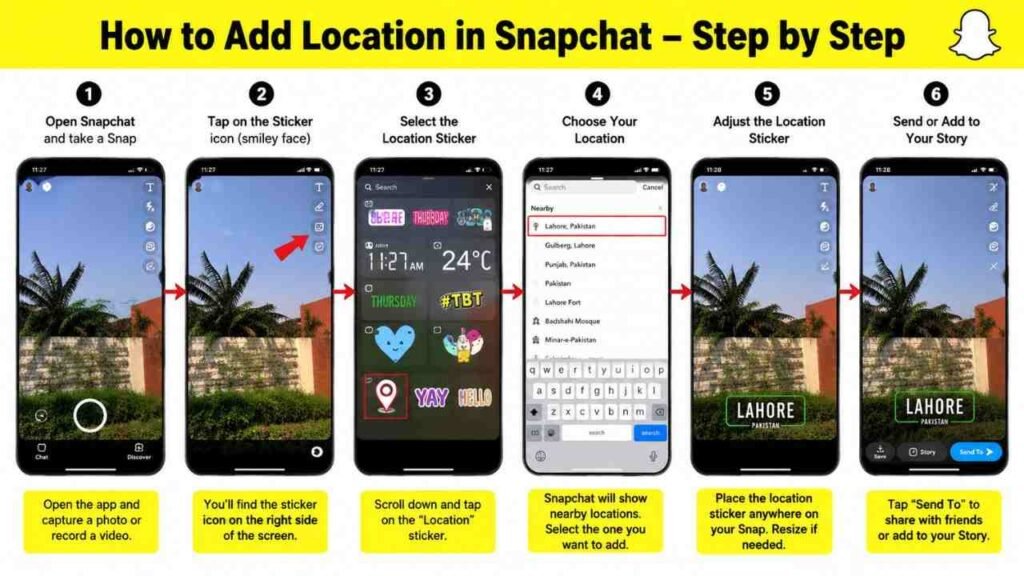
Step 3: Open Snapchat and Create a Snap
Launch Snapchat and take a photo or record a video as you normally would.
You can capture anything you want to share, such as a beautiful view, a fun gathering, or a memorable moment.
Step 4: Tap the Sticker Icon
After creating your Snap, look for the sticker icon on the right side of the screen.
Tap it to open the sticker menu.
Step 5: Select the Location Sticker
In the sticker menu, find and tap the “Location” option.
Snapchat will automatically suggest nearby locations based on your current position.
Choose the location you want to display.
Step 6: Adjust and Share
Once the location sticker appears on your Snap, you can move it, resize it, or place it wherever you like.
After that, share the Snap with friends or add it to your Story.
That’s it. Your location is now attached to your Snapchat post.
What Mistake You Should Not Do
Although adding a location is simple, many users face problems because of a few common mistakes.
Not Enabling Location Permissions
This is the most common issue. If Snapchat does not have permission to access your location, it cannot show location stickers.
Always check your permission settings first when the feature is not working.
Using an Outdated Version of Snapchat
App updates often fix bugs and improve performance.
If your location feature is missing or not working correctly, update Snapchat to the latest version from your app store.
Ignoring Internet Connection Problems
A weak internet connection can prevent Snapchat from loading location information.
Make sure you have a stable Wi-Fi or mobile data connection before using location stickers.
Sharing Sensitive Locations Publicly
Many people forget that location information can reveal where they are.
If privacy matters to you, avoid sharing your exact location publicly. Review your privacy settings regularly and use the feature wisely.
Not Restarting the App
Sometimes Snapchat experiences temporary glitches.
Closing and reopening the app can often solve small location-related problems within seconds.
FAQs
Q1. Why can’t I see the location sticker on Snapchat?
The most common reason is that location services are disabled or Snapchat does not have permission to access your location. Check your phone settings and try again.
Q2. Is adding a location on Snapchat free?
Yes, the location feature is completely free for all Snapchat users.
Q3. Can I add a location to an existing Snap?
No. Location stickers can only be added while creating a new Snap before posting it.
Q4. Does Snapchat need GPS to show location stickers?
Yes. Snapchat uses your device’s GPS and location services to identify nearby locations accurately.
Q5. Can I hide my location from friends?
Yes. Snapchat offers Ghost Mode, which allows you to hide your location from other users while still using the app.
Conclusion
Adding a location in Snapchat is a simple feature that can make your photos and videos more engaging. Whether you are sharing a travel memory, attending a special event, or simply spending time at your favorite place, a location sticker adds extra context to your story.
The process only takes a few moments. By enabling location services, giving Snapchat the right permissions, and selecting a location sticker, you can enhance your Snaps easily.
At the same time, it is important to be careful with your privacy and avoid sharing sensitive locations publicly. When used correctly, Snapchat’s location feature helps you create more meaningful and memorable stories that friends can enjoy and connect with.